How to Install GAMMA IPTV on Firestick in 2026
Installing GAMMA IPTV on Firestick is one of the easiest ways to enjoy live TV, movies, series, sports, and entertainment directly on your TV. Amazon Firestick is a popular streaming device because it is small, fast, easy to use, and works with many IPTV player apps.
In this complete guide, you will learn how to install GAMMA IPTV on Firestick, which IPTV apps you can use, how to add your GAMMA IPTV login details, and how to fix common problems like buffering, app errors, or playlist loading issues.
If you want the Smart TV version of this guide, you can also read:/install-gamma-iptv-smart-tv-2026
What You Need Before Installing GAMMA IPTV on Firestick
Before starting the setup, make sure you have a working Firestick or Fire TV device, a stable internet connection, and an active GAMMA IPTV subscription.
You will also need your GAMMA IPTV login details. These details are usually a username, password, and server URL, or sometimes an M3U playlist link.
If you do not have a subscription yet, you can check the available GAMMA IPTV plans here:/pricing
If you want to test the service first, you can request a GAMMA IPTV free trial here:/free-trial
For the best streaming experience, use a strong internet connection. Firestick works better with a stable Wi-Fi connection, and if possible, you can also use an Ethernet adapter for more stability.
Best IPTV Apps for GAMMA IPTV on Firestick
To watch GAMMA IPTV on Firestick, you need an IPTV player app. The IPTV player does not include channels by itself. It is only the app that allows you to open your GAMMA IPTV subscription.
Some popular IPTV player apps for Firestick include IPTV Smarters, TiviMate, IBO Player, Smart IPTV, SET IPTV, and other compatible IPTV players.
For official Fire TV app installation help, Amazon explains how users can search for apps from the Fire TV main menu and download them from the device. You can check the official guide here:https://www.amazon.com/gp/help/customer/display.html?nodeId=GRDR6KJPL2FT6YHS
You can also browse Fire TV apps from Amazon here:https://www.amazon.com/Fire-TV-Apps-All-Models/b?ie=UTF8&node=10208590011
How to Install GAMMA IPTV on Firestick from the Amazon Appstore
The safest and easiest method is to install an IPTV player directly from the Amazon Appstore if it is available in your region.
First, turn on your Firestick and go to the home screen. Use the search option and type the name of the IPTV player you want to install. You can search for apps like IPTV Smarters, IBO Player, Smart IPTV, or another IPTV player available on your Firestick.
When you find the app, click Download or Get. Wait for the installation to finish, then open the app.
After opening the IPTV app, choose the login method. Most IPTV apps support Xtream Codes API or M3U playlist URL.
Enter your GAMMA IPTV username, password, and server URL exactly as provided. Then click login or add user. After a few seconds, the app should load your live TV channels, movies, series, sports categories, and TV guide if available.
If you need help with your account or login details, contact GAMMA IPTV support here:/contact
How to Install GAMMA IPTV on Firestick Using Downloader
Some IPTV player apps may not appear directly in the Amazon Appstore depending on your country or Firestick version. In that case, many users use the Downloader app to install apps from official or trusted sources.
Downloader is listed on the Amazon Appstore and is designed to let users enter URLs and download files on Fire TV devices. You can find it here:https://www.amazon.com/AFTVnews-com-Downloader/dp/B01N0BP507
To use this method, install Downloader from the Amazon Appstore. Then open your Firestick settings and allow app installation only for trusted apps. After that, open Downloader and enter the official website link of the IPTV player you want to use.
Important: Only download apps from official or trusted sources. Avoid unknown APK websites because they can be unsafe. Also, only use IPTV services that provide authorized content.
IPTV Player Links for Firestick Setup
You can use these player links inside your GAMMA IPTV setup process:
IPTV Smarters / Smarters Playerhttps://play.google.com/store/apps/details?id=com.smarters.smarterspro
Smart IPTVhttps://siptv.app/
Smart IPTV playlist uploadhttps://siptv.app/mylist/
SET IPTVhttps://setsysteme.com/
SET IPTV playlist uploadhttps://setsysteme.com/set.app
IBO Playerhttps://iboplayer.com/
Flix IPTV playlist uploadhttps://flixapp.net/mylist
If one IPTV player does not work well on your Firestick, try another compatible player. Some apps perform better depending on your Firestick model, internet speed, and IPTV login type.
How to Add GAMMA IPTV Login Details on Firestick
After installing your IPTV player, open the app and choose the login option.
The easiest method is usually Xtream Codes API. With this method, you need three details: username, password, and server URL.
Enter the details carefully. Make sure there are no spaces before or after the username, password, or server link. After entering the information, click Add User, Login, or Connect depending on the app.
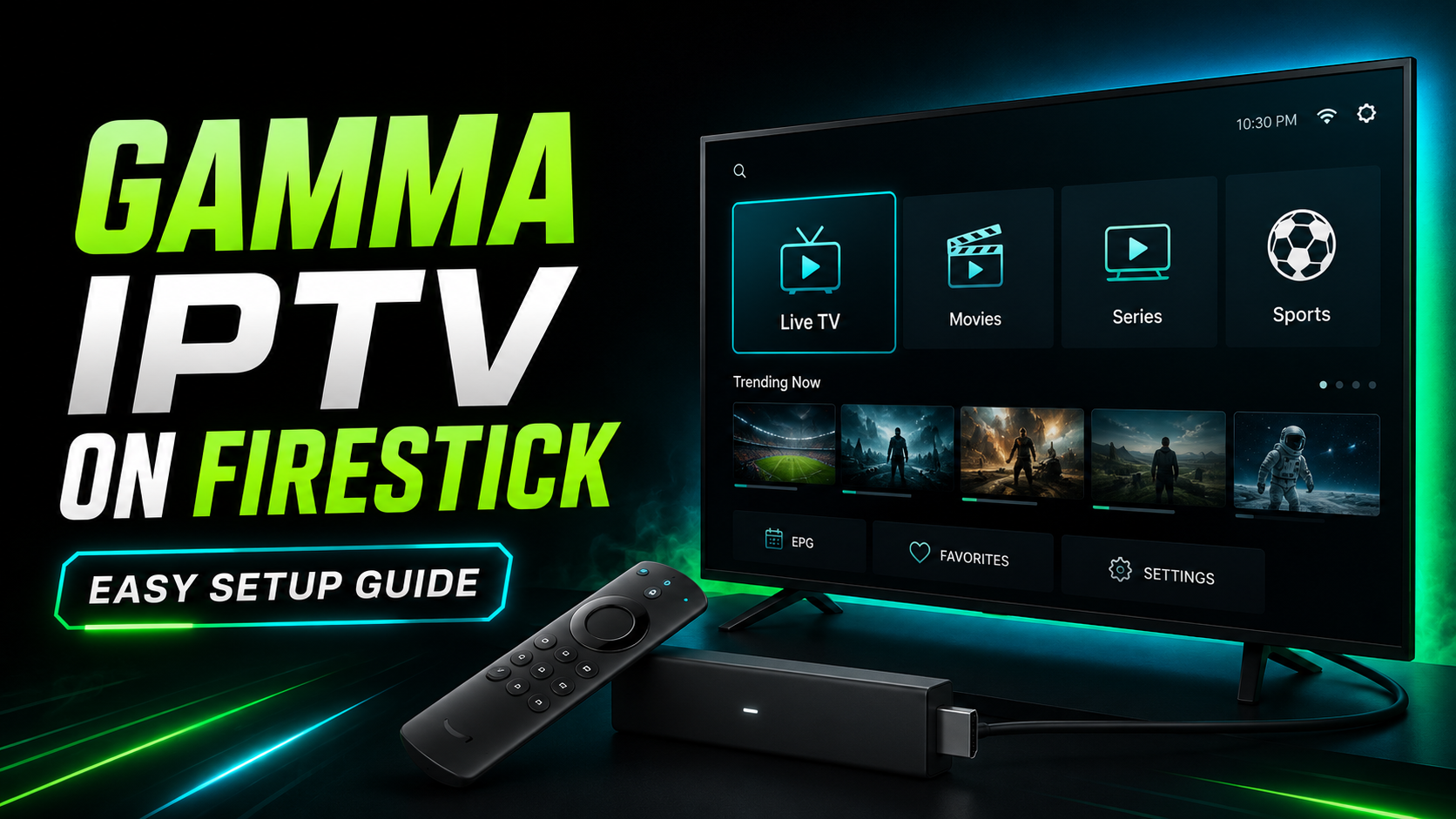
Once the login is successful, wait for the app to load the content. You should see categories like Live TV, Movies, Series, Sports, Favorites, and TV Guide.
For a full device setup page, you can visit:/installation-guide
Best Firestick Settings for GAMMA IPTV
To get smooth streaming with GAMMA IPTV on Firestick, you should optimize your device.
Restart your Firestick before using IPTV. This clears temporary memory and makes the device faster.
Keep your Firestick storage clean. If your Firestick is almost full, apps can become slow. Delete unused apps and clear cache regularly.
Use a 5GHz Wi-Fi network if your router supports it. This usually gives better speed and stability than 2.4GHz Wi-Fi.
Keep your Firestick close to the router. Weak Wi-Fi signal can cause buffering and freezing.
Update your Firestick software and IPTV player app when updates are available.
For official Fire TV app help, use Amazon’s support page here:https://www.amazon.com/gp/help/customer/display.html?nodeId=GRDR6KJPL2FT6YHS
Recommended Internet Speed for GAMMA IPTV on Firestick
For the best GAMMA IPTV experience on Firestick, your internet connection should be stable.
For SD channels, 10 Mbps can be enough. For HD channels, 20 Mbps or more is recommended. For Full HD and 4K streaming, 30 Mbps to 50 Mbps or more gives better results.
If your Firestick buffers often, test your internet speed, restart your router, and reduce the number of devices connected to the same network.
If you still have streaming problems, contact GAMMA IPTV support here:/contact
How to Fix GAMMA IPTV Buffering on Firestick
Buffering is one of the most common IPTV problems on Firestick. It can happen because of weak internet, low Firestick storage, overloaded Wi-Fi, or wrong player settings.
To fix buffering, restart your Firestick and router. Then open your IPTV player and clear the app cache from Firestick settings.
You can also try changing the player inside the IPTV app. Some apps allow you to switch between built-in player, external player, hardware decoding, or software decoding.
If possible, use Ethernet with your Firestick for a more stable connection. Ethernet is usually better than Wi-Fi for IPTV streaming.
For more setup help, visit:/installation-guide
What to Do If GAMMA IPTV Login Is Not Working
If your GAMMA IPTV login is not working on Firestick, first check your username, password, and server URL. Make sure everything is written exactly as provided.
Do not add extra spaces. Do not change capital letters. Do not remove symbols from the server URL.
If you are using an M3U link, make sure the full link is copied correctly. If the link is broken or incomplete, the playlist will not load.
If the problem continues, your subscription may be expired or inactive. Contact GAMMA IPTV support here:/contact
What to Do If the IPTV App Is Not Found on Firestick
Sometimes an IPTV app may not appear in the Amazon Appstore. This can happen because of your country, Firestick model, or app availability.
If the app is not available, try another IPTV player from the Fire TV app store. You can browse Fire TV apps here:https://www.amazon.com/Fire-TV-Apps-All-Models/b?ie=UTF8&node=10208590011
You can also use the Downloader app for trusted and official player sources:https://www.amazon.com/AFTVnews-com-Downloader/dp/B01N0BP507
Always avoid fake apps or unknown websites. Use trusted IPTV players and authorized content only.
Why Choose GAMMA IPTV for Firestick?
GAMMA IPTV is a strong choice for Firestick users because it gives you a simple way to watch live TV, movies, series, sports, and entertainment from one device.
Firestick is easy to carry, easy to install, and works on almost any TV with an HDMI port. This makes GAMMA IPTV on Firestick a good option for home streaming, travel, bedroom TV, living room TV, or backup streaming.
You can check GAMMA IPTV pricing here:/pricing
You can also request a free trial here:/free-trial
GAMMA IPTV Firestick Installation Checklist
Before you start watching, make sure your Firestick is connected to the internet, your IPTV player app is installed, your GAMMA IPTV subscription is active, and your login details are correct.
Also make sure your Firestick has enough storage and your IPTV app is updated.
If the playlist does not load, restart the app, restart the Firestick, and check your internet connection.
For support, visit:/contact
FAQ About Installing GAMMA IPTV on Firestick
Can I install GAMMA IPTV on Firestick?
Yes, you can install GAMMA IPTV on Firestick using a compatible IPTV player app. After installing the player, you add your GAMMA IPTV login details and start watching.
What is the best IPTV app for GAMMA IPTV on Firestick?
Popular options include IPTV Smarters, TiviMate, IBO Player, Smart IPTV, SET IPTV, and other compatible IPTV players. The best app depends on your Firestick model and personal preference.
Do I need Downloader for GAMMA IPTV on Firestick?
Not always. If your IPTV player is available in the Amazon Appstore, install it directly from there. If it is not available, Downloader can help you install apps from trusted and official sources.
Why is GAMMA IPTV buffering on Firestick?
Buffering can happen because of weak internet, low Firestick storage, overloaded Wi-Fi, or app settings. Restart your Firestick, clear app cache, use stronger Wi-Fi, or use Ethernet if possible.
Can I watch GAMMA IPTV in 4K on Firestick?
Yes, if your GAMMA IPTV plan supports 4K, your Firestick supports 4K, your TV supports 4K, and your internet speed is strong enough.
Is GAMMA IPTV legal on Firestick?
IPTV technology itself is legal. Always use IPTV services and apps that provide authorized content and respect copyright rules.
What should I do if my login details do not work?
Check your username, password, and server URL. If everything is correct but the account still does not work, contact GAMMA IPTV support here:/contact
Conclusion
Installing GAMMA IPTV on Firestick in 2026 is simple when you use the right IPTV player app and correct login details. First, install a compatible IPTV player from the Amazon Appstore or another trusted source. Then enter your GAMMA IPTV username, password, and server URL. After that, your live TV, movies, series, sports, and entertainment content should load inside the app.
For the best experience, keep your Firestick updated, use strong internet, clear cache regularly, and choose a reliable IPTV player.