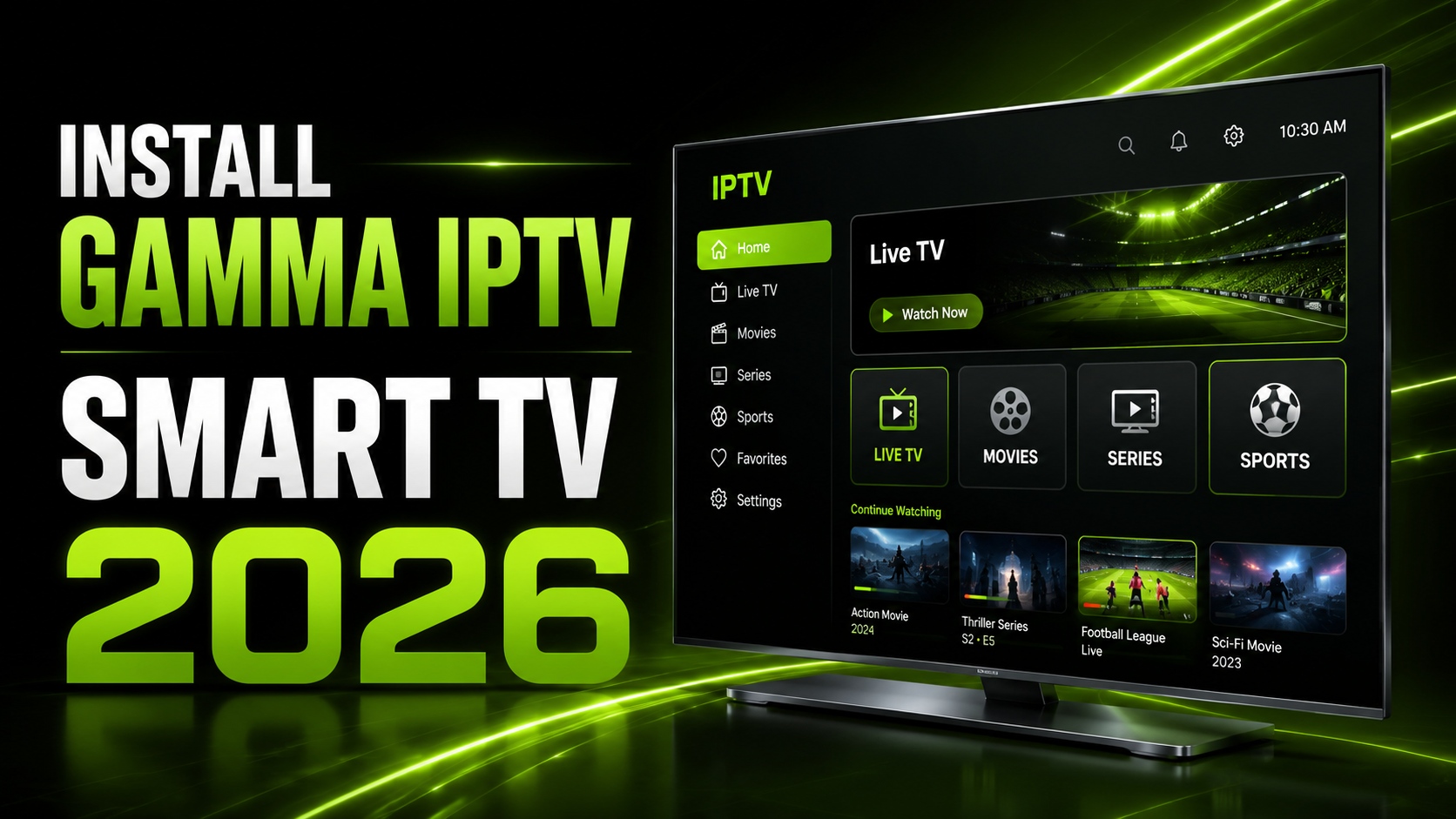
Installing GAMMA IPTV on Smart TV in 2026 is one of the easiest ways to enjoy a smooth streaming experience directly on your television without needing complicated cables or extra equipment. Whether you use a Samsung Smart TV, LG Smart TV, Android TV, Google TV, or Fire TV, you can set up GAMMA IPTV in just a few simple steps using a compatible IPTV player app.
In this guide, you will learn exactly how to install GAMMA IPTV on Smart TV, which apps you may need, how to add your IPTV login details, and how to fix the most common setup problems.
Important: This guide is for users with an active and legal GAMMA IPTV subscription. Always use IPTV services that provide authorized content.
What You Need Before Installing GAMMA IPTV
Before starting the setup process, make sure you have the following:
A stable internet connection, preferably 25 Mbps or higher for HD and 4K streaming.
Your GAMMA IPTV subscription details, such as username, password, server URL, M3U link, or Xtream Codes login.
A compatible Smart TV, such as Samsung, LG, Android TV, Google TV, or Fire TV.
An IPTV player app installed on your TV.
The IPTV player does not provide channels by itself. It is only the app that allows you to load your GAMMA IPTV subscription and watch your content.
Best IPTV Apps for GAMMA IPTV on Smart TV
Depending on your Smart TV model, you can use apps such as:
IPTV Smarters Pro
A popular option for Xtream Codes login. It is simple and beginner-friendly.
Smart IPTV
A well-known IPTV player for many Smart TVs.
SET IPTV
A clean IPTV player often used on Samsung and LG Smart TVs.
IBO Player
A premium IPTV player with a smooth interface.
Flix IPTV
Another IPTV player option for Smart TV users.
App availability depends on your TV brand, country, and app store. Samsung Smart TVs use Smart Hub and the Samsung Apps section, while LG Smart TVs use LG Content Store. Samsung explains that apps can be searched from the Apps section, and LG provides apps through LG Content Store.
How to Install GAMMA IPTV on Samsung Smart TV
Samsung Smart TVs are very popular for IPTV because they have a clean interface and support many streaming apps.
Step 1: Open the Apps Section
Turn on your Samsung Smart TV and press the Home button on your remote.
Go to Apps.
Select the Search icon.
Samsung’s official support explains that apps can be downloaded by opening Apps, using the search icon, and selecting the app you want to install.
Step 2: Search for an IPTV Player
Search for one of these IPTV player apps:
IPTV Smarters
Smart IPTV
SET IPTV
IBO Player
Flix IPTV
If your preferred app does not appear, try another IPTV player available in your region.
Step 3: Install the App
Select the IPTV app and click Install.
Wait until the installation is complete.
Open the app from your Samsung TV home screen.
Step 4: Add Your GAMMA IPTV Details
Inside the IPTV player app, choose one of the login methods:
Xtream Codes API
M3U Playlist URL
Portal URL
Enter the details provided by GAMMA IPTV.
Click Add User, Login, or Connect, depending on the app.
Step 5: Start Watching
After login, the app will load your live TV channels, movies, series, and sports categories.
You can now enjoy GAMMA IPTV directly on your Samsung Smart TV.
How to Install GAMMA IPTV on LG Smart TV
LG Smart TVs use webOS and the LG Content Store to download apps.
Step 1: Open LG Content Store
Press the Home button on your LG remote.
Open LG Content Store.
LG’s official support explains that users can open LG Content Store from the Home menu and search for apps using the search icon.
Step 2: Search for an IPTV App
Search for:
Smart IPTV
SET IPTV
IBO Player
Flix IPTV
IPTV Smarters, if available
Step 3: Install and Open the App
Choose the app, click Install, then open it.
Some IPTV apps may show a device ID or MAC address. In that case, you may need to activate the app on the player’s official website before loading your playlist.
Step 4: Add GAMMA IPTV Playlist
Use the login details from GAMMA IPTV.
You may need:
M3U link
Username
Password
Server URL
MAC address activation, depending on the app
Once the playlist is added, restart the IPTV app.
Step 5: Enjoy GAMMA IPTV on LG TV
After the playlist loads, you can browse live TV, sports, movies, series, and other categories from the IPTV app interface.
How to Install GAMMA IPTV on Android TV or Google TV
Android TV and Google TV are usually easier because they support apps through Google Play.
Step 1: Open Google Play Store
From your Android TV or Google TV home screen, open Google Play Store.
Google notes that TV apps can be installed from Google Play, but only apps compatible with TVs will appear. A Google account and internet connection may be required.
Step 2: Search for IPTV Player
Search for:
IPTV Smarters Pro
TiviMate
XCIPTV
OTT Navigator
IBO Player
Step 3: Install the App
Click Install and wait for the app to download.
Step 4: Enter GAMMA IPTV Login
Open the app and enter your GAMMA IPTV subscription details.
The easiest method is usually Xtream Codes API, because you only need:
Username
Password
Server URL
Step 5: Load Channels
Once connected, wait for the app to load the channel list, VOD movies, TV series, and EPG if available.
How to Install GAMMA IPTV on Fire TV or Firestick
Fire TV and Firestick are also popular for IPTV, especially for users who want a fast and flexible streaming device.
Step 1: Open Fire TV Search
From the Fire TV home screen, go to Find or Search.
Amazon’s official Fire TV support says users can search for apps from the main menu and download them on Fire TV devices.
Step 2: Search for an IPTV App
Search for an IPTV player available in the Amazon Appstore.
Examples may include IPTV players such as Smarters-style players, media players, or TV-compatible streaming apps depending on your region.
Step 3: Install the App
Click Download or Get.
Open the app after installation.
Step 4: Add GAMMA IPTV Login
Enter the Xtream Codes or M3U details provided by GAMMA IPTV.
Click login and wait for the content to load.
Important Fire TV Note
Amazon states that Fire TV may disable apps identified as providing access to unlicensed content. For safety and long-term stability, only use trusted apps and authorized IPTV content.
Recommended Internet Speed for GAMMA IPTV
For the best GAMMA IPTV experience, use these internet speeds:
SD channels: 10 Mbps minimum
HD channels: 20 Mbps or more
Full HD channels: 30 Mbps or more
4K channels: 50 Mbps or more recommended
For better stability, use Ethernet cable instead of Wi-Fi when possible. If you use Wi-Fi, place your router close to the Smart TV.
Best Settings for Smooth IPTV Streaming
To reduce buffering and improve performance, try these tips:
Restart your Smart TV before setup.
Close apps running in the background.
Use a 5GHz Wi-Fi network instead of 2.4GHz.
Update your Smart TV software.
Update your IPTV player app.
Clear app cache if your device supports it.
Use Ethernet for more stable streaming.
Avoid using VPN unless needed, because some VPN servers can reduce speed.
Common GAMMA IPTV Problems and Fixes
GAMMA IPTV Login Not Working
Check that your username, password, and server URL are correct.
Make sure there are no extra spaces.
Try typing the details manually instead of copying and pasting.
Contact GAMMA IPTV support if your subscription is expired or inactive.
Channels Are Not Loading
Restart the IPTV app.
Restart your Smart TV.
Check your internet connection.
Reload the playlist.
Try another IPTV player app.
IPTV Buffering on Smart TV
Use Ethernet if possible.
Restart your router.
Reduce other devices using the same network.
Change player settings if your app allows it.
Try a different stream quality.
App Not Found on Smart TV
Some IPTV apps are not available in all countries or on all TV models.
Try another IPTV player.
Use Android TV, Google TV, or Firestick if your Smart TV app store does not support your preferred IPTV player.
Why Choose GAMMA IPTV for Smart TV?
GAMMA IPTV is designed for users who want a simple and modern streaming experience on Smart TV. Instead of switching between many apps and devices, you can organize live TV, movies, series, and sports inside one IPTV player interface.
With the right app and a stable internet connection, GAMMA IPTV can give you:
Easy Smart TV setup
Live TV categories
Movies and series sections
Sports channels
Fast navigation
Multi-device flexibility
HD, Full HD, and 4K support depending on your plan and internet speed